




This document covers the setup for AEM 6.5 and upgrading to Service Pack-12.
Prerequisites:
The following software is required for installation in one’s local environment:
- AEM Quickstart Jar, Service Pack -12 package and license details
- Java 8/ 11 (Open JDK or Oracle Java)
- Java 8 supported after SP-9 upgrade, here we are setting up SP-12.
Step 1 - Install Java
Adobe Experience Manager is a Java application and requires the Java SDK to support the development tooling.
- Download and install the latest java SDK11+
- Verify Java 11 SDK is installed by running the command:
- Windows: java -version
- macOS / Linux: java –version
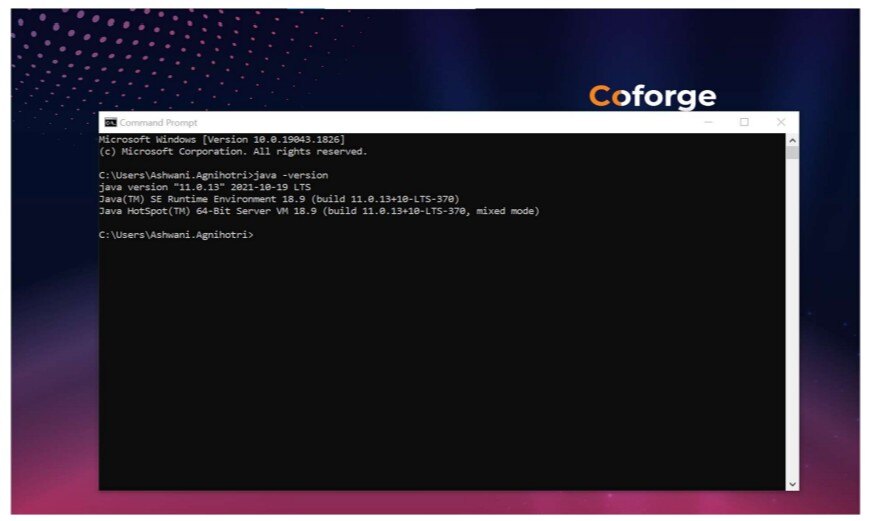
For Java/JDK 11- Path variables that need to be set:
- Create the system or user variables for the following:
- Search Edit the system environment variable of your account
- Create a new variable name and paste the JDK path and save it
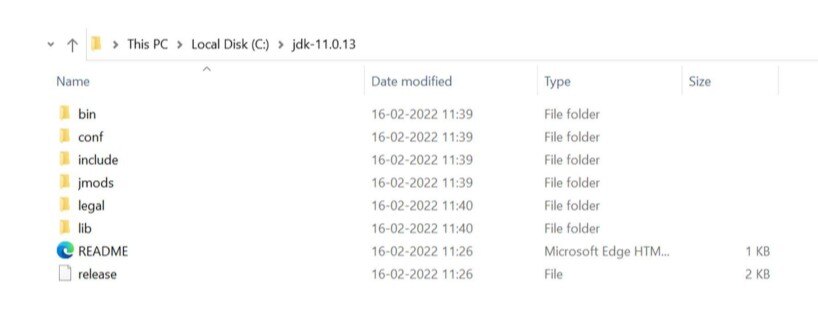
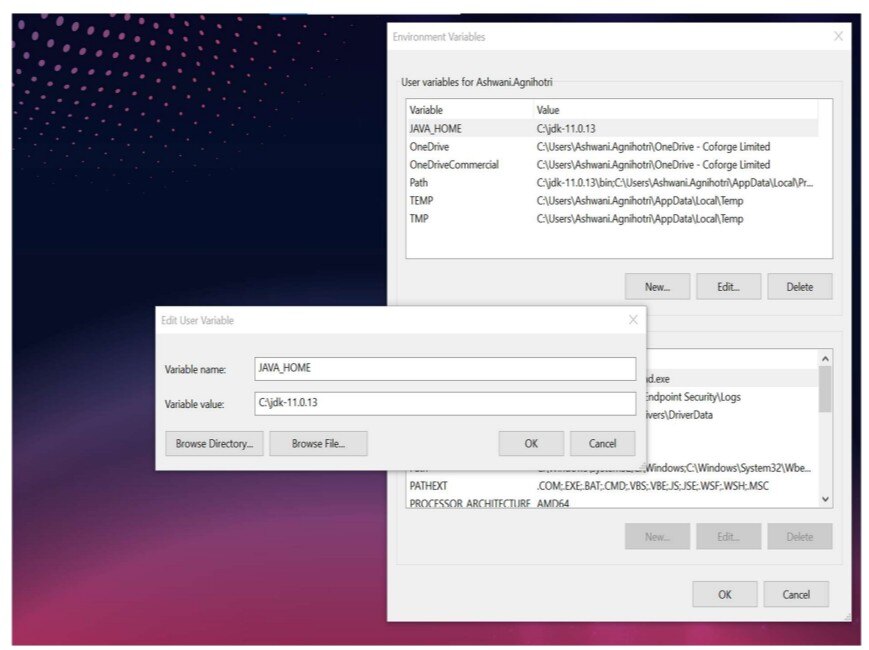
Step 2 - Setup Local AEM instances
- Two basic run modes can be installed: Author and Publish. The Author run mode is the environment that developers will use to create and manage content.
- When developing most of the time you will be deploying code to an Author instance.
- The Publish instance is the AEM environment in that visitors to your website will interact
- Extract the AEM quickstart Jar and rename the jar file.
- Aem-author-p4502.jar (Application Name-Run mode-Port No.)
- Open command/ terminal and run the command
java –jar aem-author-p4502.jarand enter a password using admin.
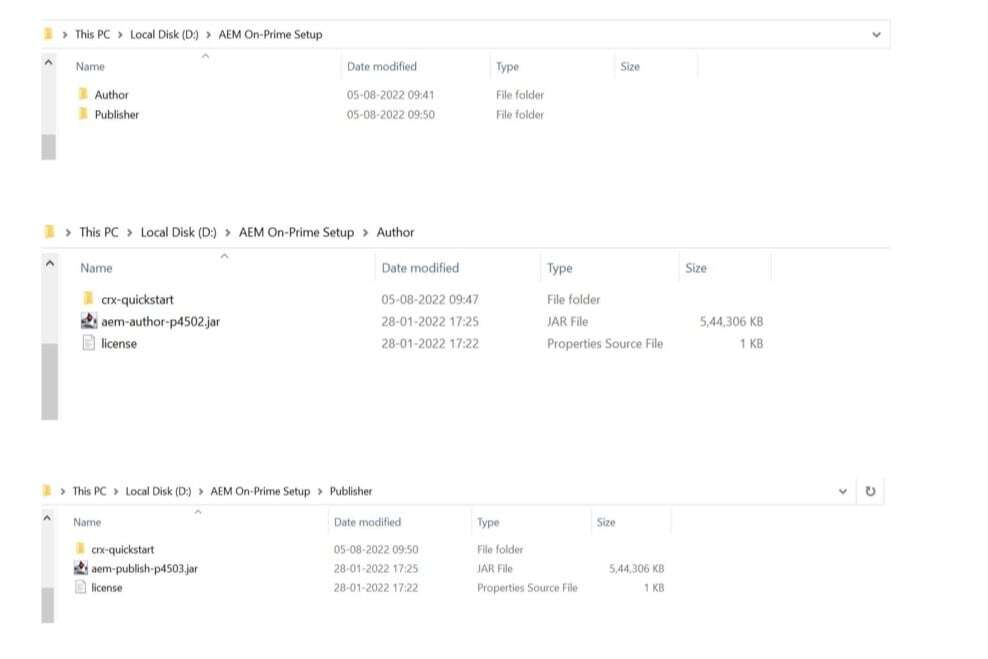
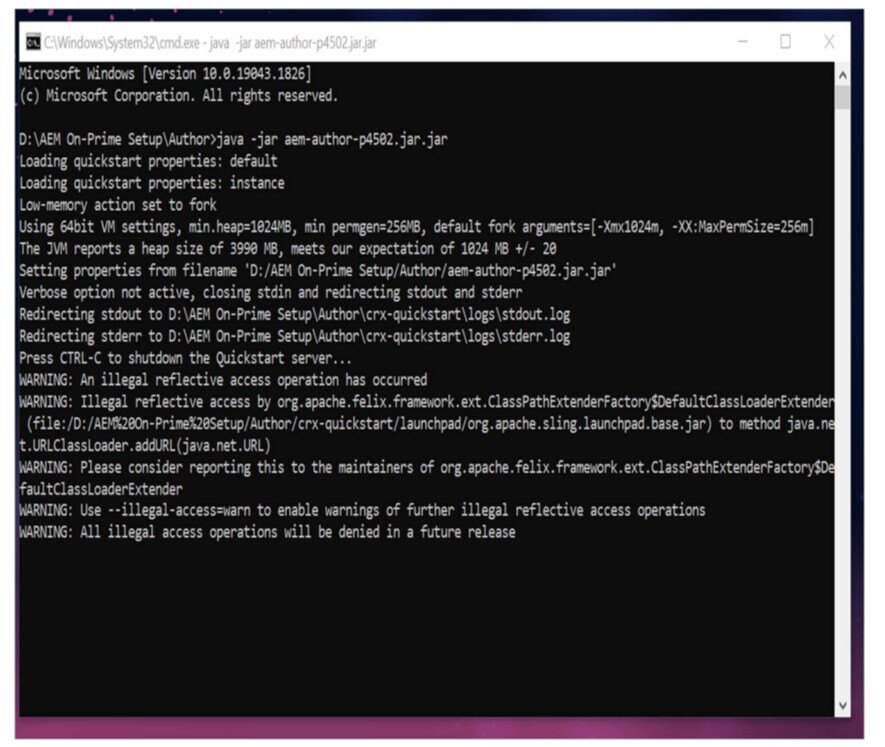
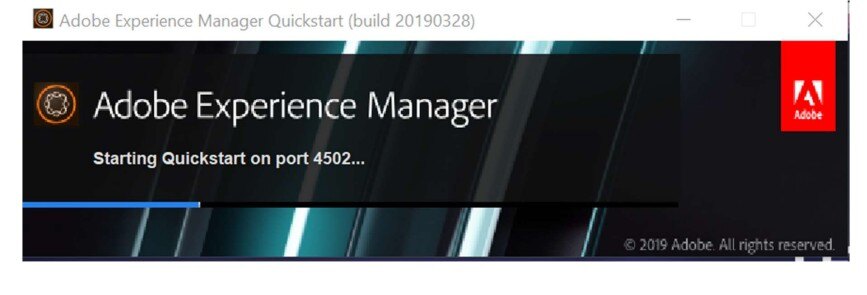
- AEM Server will be up in 5 minutes and the AEM console will open on port 4502.
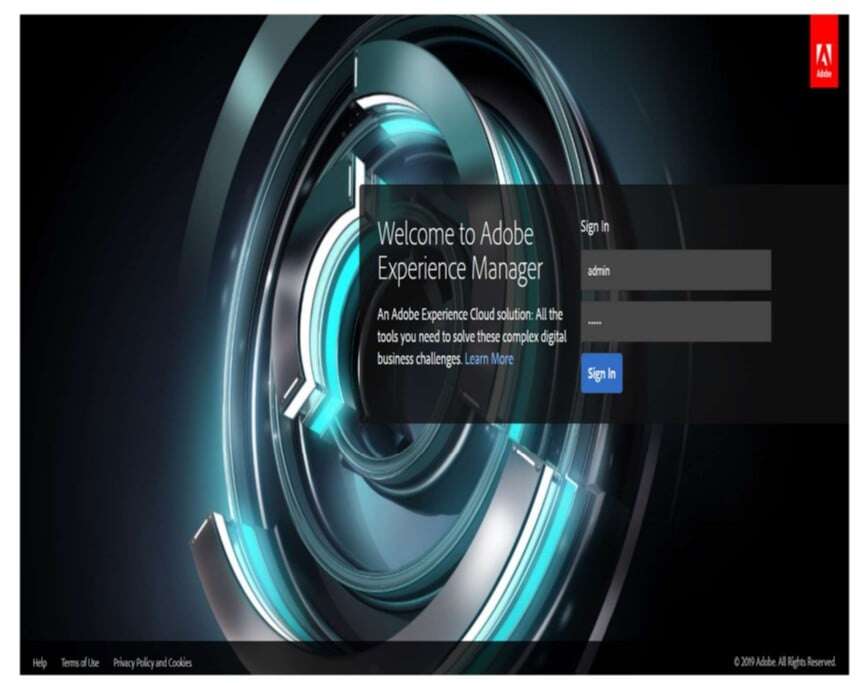
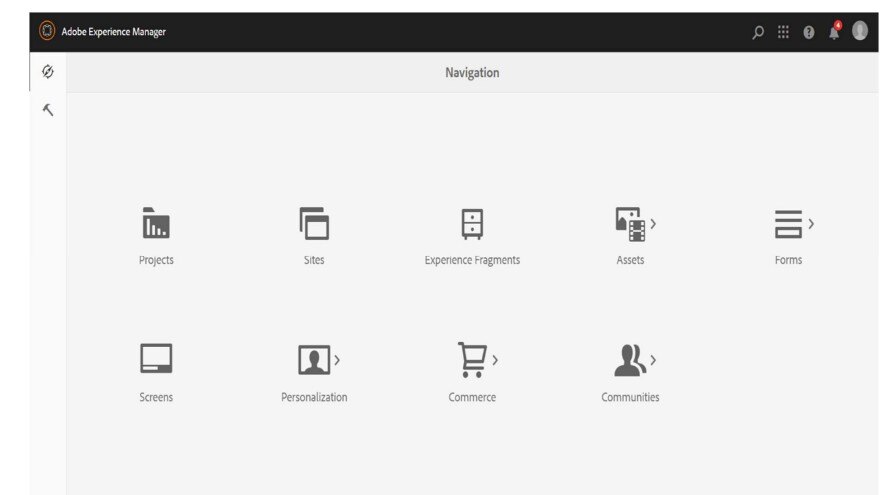
- The following screen comes up when the server is up and enters a password use admin.
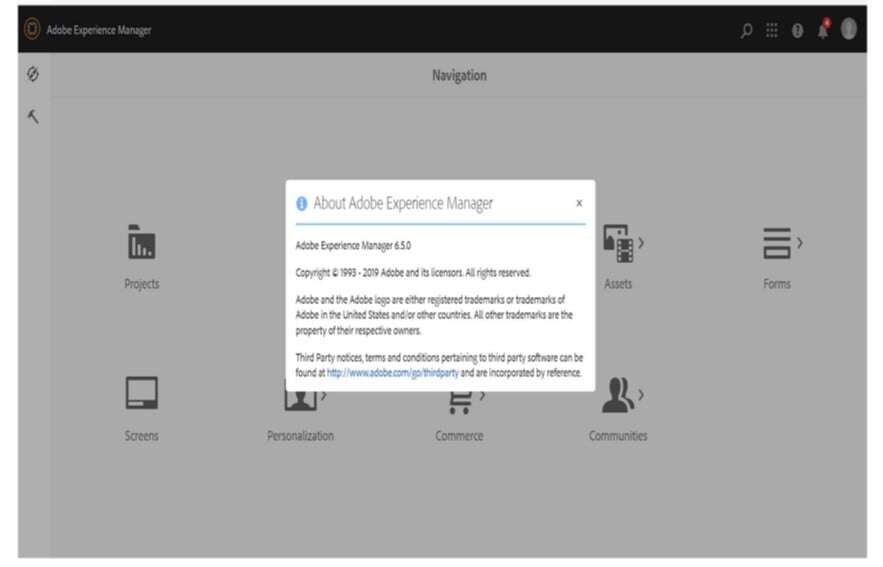
Step 5 - Install Service Pack 12
Install the service pack on Experience Manager 6.5
- Restart the instance before installation if the instance is in update mode (when the instance was updated from an earlier version). Adobe recommends a restart if the current uptime for an instance is high.
- Before installing, take a snapshot or a fresh backup of your Experience Manager instance.
- Download the service pack from Software Distribution.
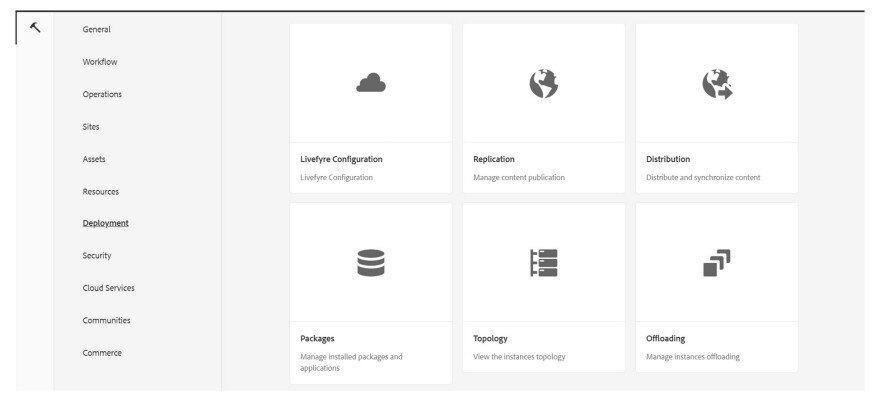
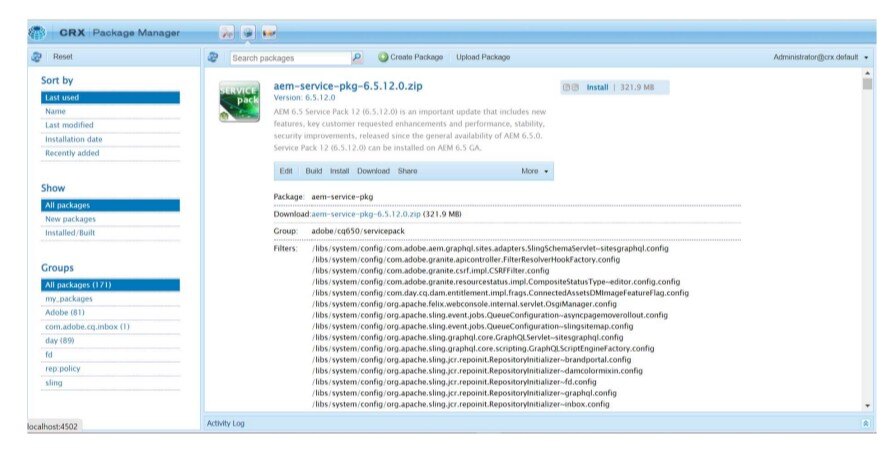
- Open Package Manager and click Upload Package to upload the package. To know more, see Package Manager.
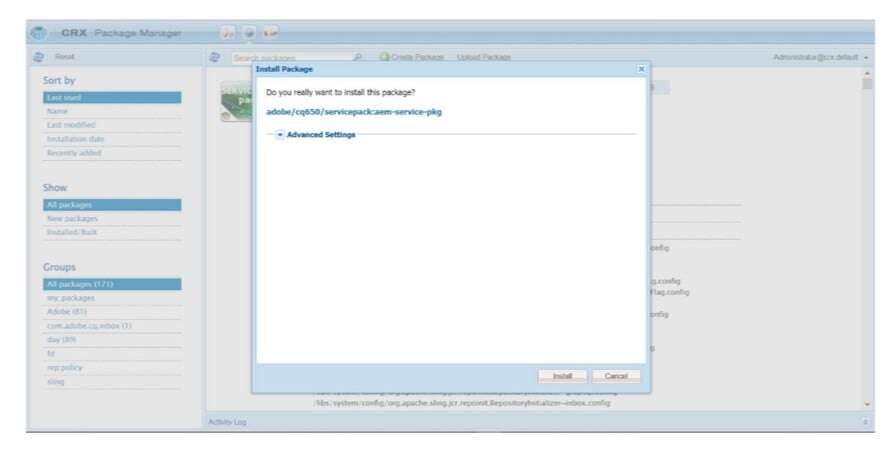
- Select the package and click Install and refresh the page.
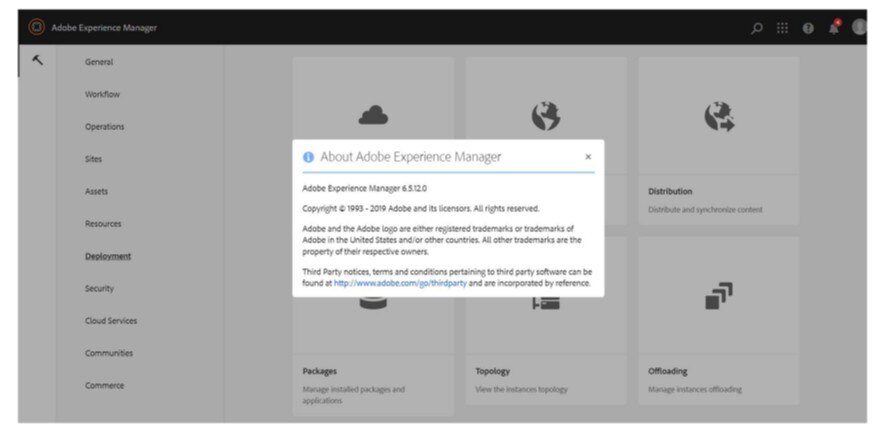
Congratulations With this the AEM On-Prem Setup is completed successfully.