




AI Summary
Key points of this article, generated by AI.
Generating AI Summary
You are interacting with an AI system. AI-generated responses may not always be accurate or complete. Please verify important information before relying on it.
Learn how to create a custom Workflow with the Dynamic Participant Step. Learn to develop custom Dynamic Participant Workflow Step.
Objective
- Understand how to create a custom Dynamic Participant Workflow.
- Understand how to create custom Dynamic Participant Step for the custom functionality.
What you will build
A simple custom Dynamic Participant workflow which would work on custom Dynamic Participant step fetching the user id based on some logic.
Pre-Requisites
- AEM Author Instance
- JDK 1.8+
- Maven
- Eclipse or any IDE
Define the Custom Dynamic Participant Workflow
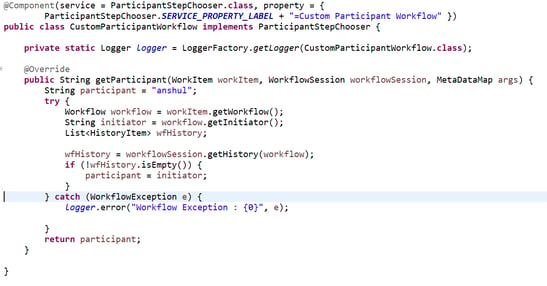
Create a custom Dynamic Participant Step Process which would dynamically return the user. This process should return the user/ group id to which we want to take the necessary action on our workflow.
The Workflow process could be something like this -
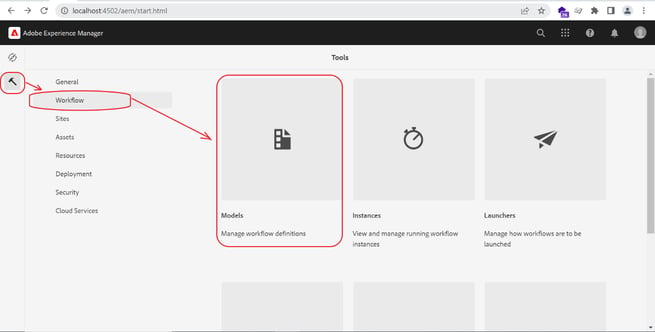
Now, Open AEM Instance -> http:localhost:4502/aem/start.html
Go to Tools -> Workflow -> Models. Open Workflow Models.
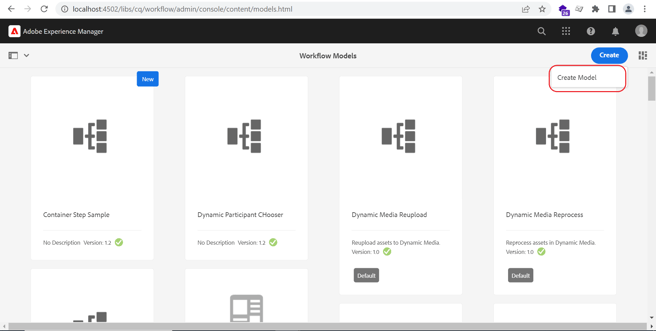
Click on Create Button -> Create Model.
Input the Title and name of the Workflow.
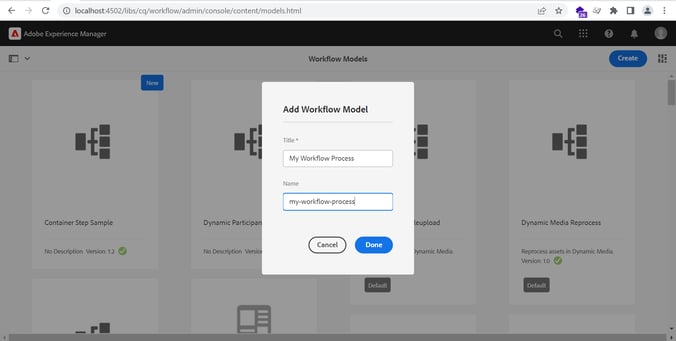
Click on Done. Your Workflow Model will be created.
Now, Select the workflow and click on Edit button to provide the steps of the workflow.
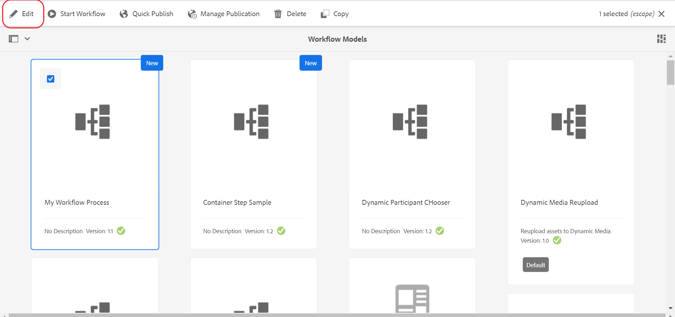
Edit the workflow Model and add the respective steps.
Remove the default step by clicking on delete button.
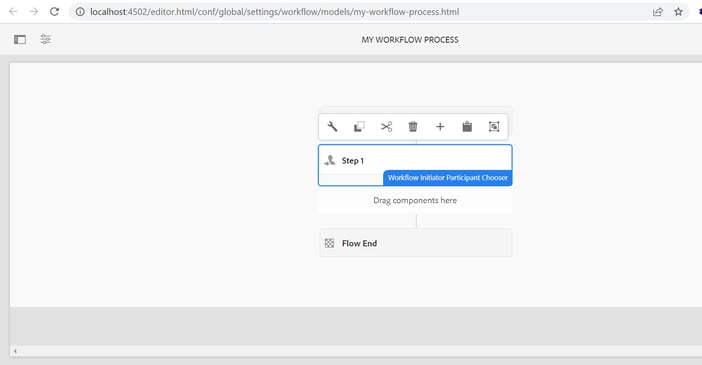
Add the required step.
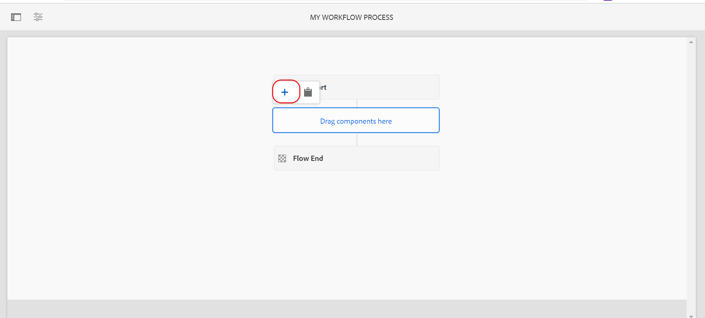
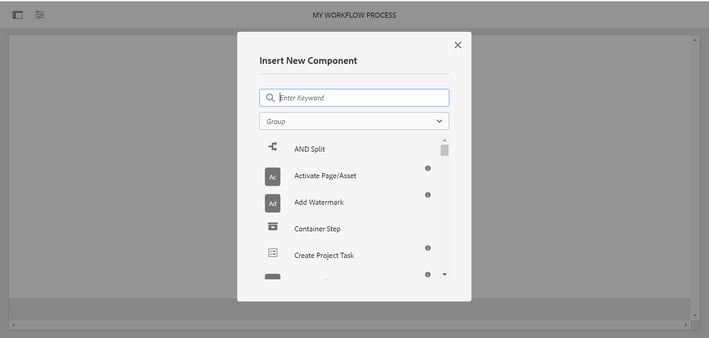
Select the Dynamic Participant Step.
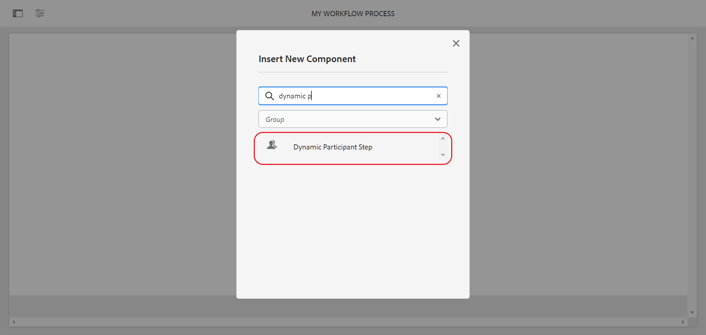
Configure the Dynamic Participant Step to add our Custom Step.
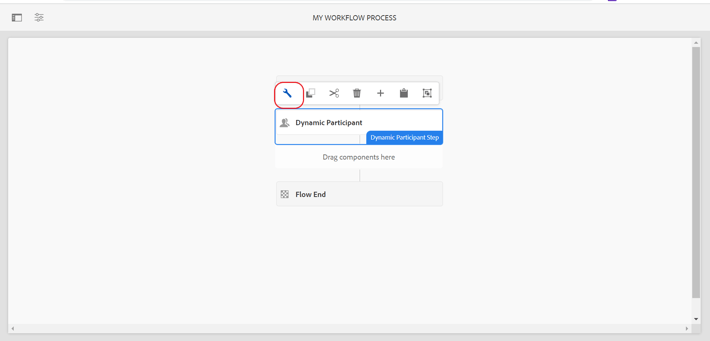
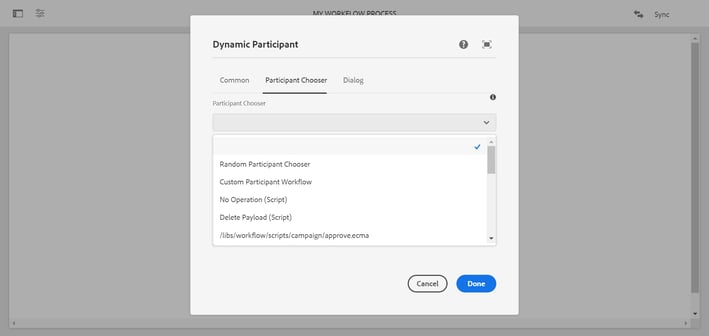
I have selected my Custom Process which is, Custom Participant Workflow.
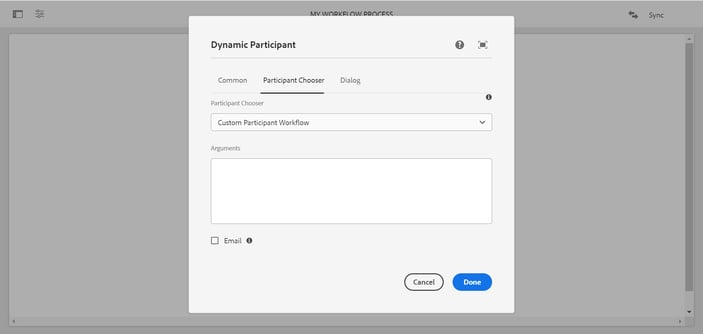
Once done with configuring, Click on Sync at the top rightmost corner of the screen to propagate the changes at Runtime.
Your workflow is created. You can try running it.
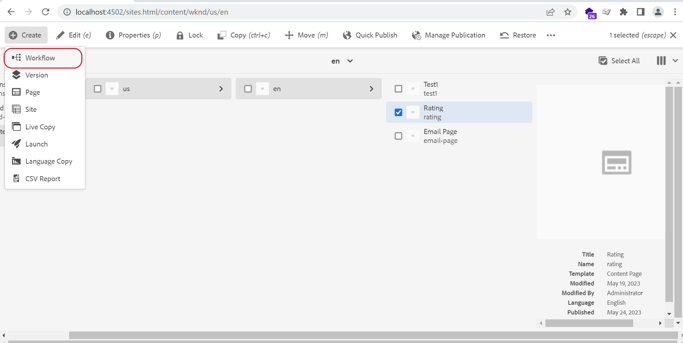
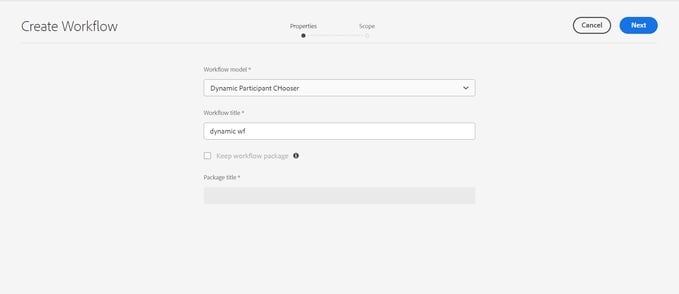
You can find the workflow details along with the assignee, to whom the workflow is assigned in the user’s inbox to get the workflow notification to complete or reject the workflow process.
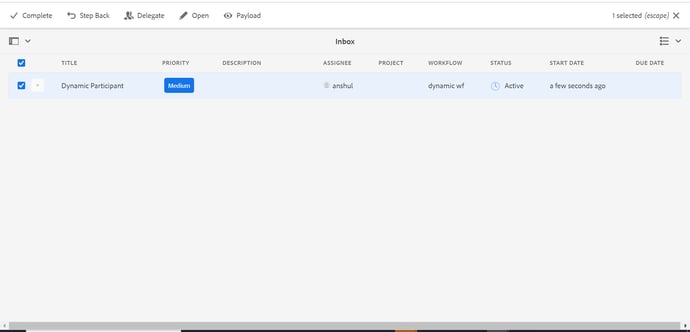
You can click on Open and check the details about the workflow.
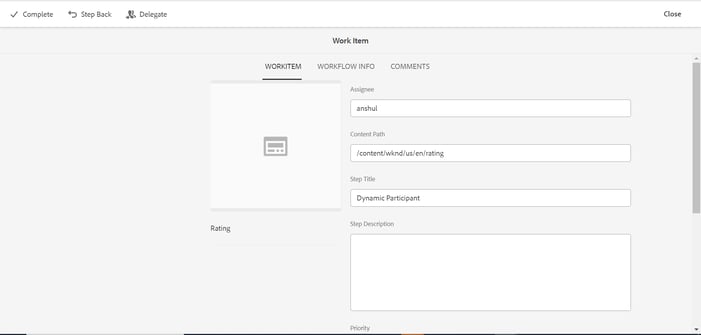
You can complete or step back the workflow step to take the necessary actions.
Hope you liked the article. Please reach out to digital group: digital.interactive@coforge.com for any query.