




AI Summary
Key points of this article, generated by AI.
Generating AI Summary
You are interacting with an AI system. AI-generated responses may not always be accurate or complete. Please verify important information before relying on it.
Learn to create a custom form component which takes user input and on submit would send an email with an attached pdf which would contain the data entered in the form.
Objective
- Understand how to create a custom component in AEM.
- Understand how to create a custom Sling Servlet which would send an email.
- Understand how to create a custom email.
- Understand how to do the OSGI configurations for Mail Service.
- Understand how to use pdfbox API to create a Pdf in the DAM Structure.
What you will build
A custom form component will be built taking user input in the form field. A Sling Servlet will be built which would be creating a pdf in the content DAM Structure and attaching the same pdf to the custom email.
Pre-Requisite
- Java 1.8+
- Maven
- Eclipse/ IntelliJ or any IDE
- AEM Author Instance
- SMTP Email Server
Define the Custom Form Component
- Create a component under /apps//components.
- sample_form is the component.
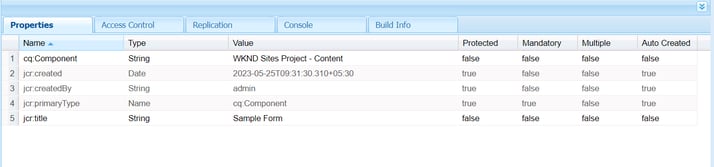
- Create the node cq:dialog and file sample_form.html under the component.
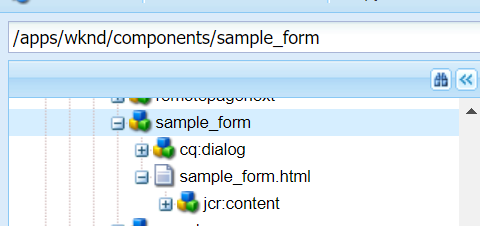
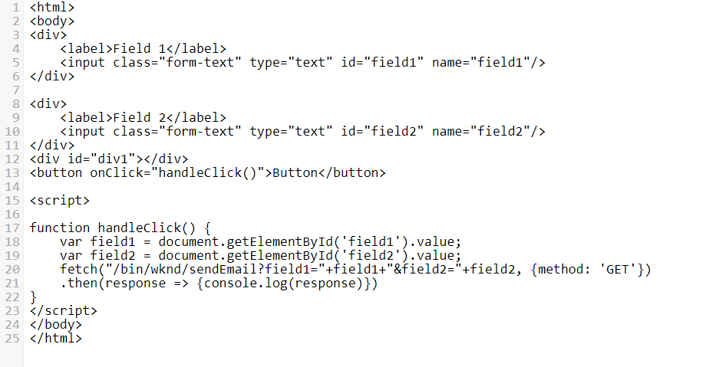
- Add the below code in the sample_form.html.
- Now, open wknd repo in any of the IDE and create a Servlet under wknd.core package.
- For the Servlet code, you can refer to the following URL :
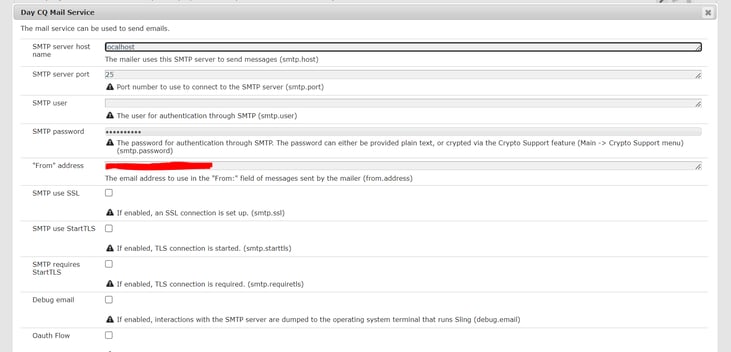
- Now, go to http://localhost:4502/system/console/configMgr
- Search for Day CQ Mail Service(day.cq.mailer.DefaultMailService).
- Update the configurations according to required SMTP server. Below screenshot can be used as reference.
- Update SMTP Server, Port, Username, Password, from details. Below SMTP Server host name is used for testing purpose.
- Actual hostname can be configured as required.
- Make sure your SMTP Server is up.
- Once the code is deployed to the Server, create a sample page and add the component to the Page.
- The page would look as below
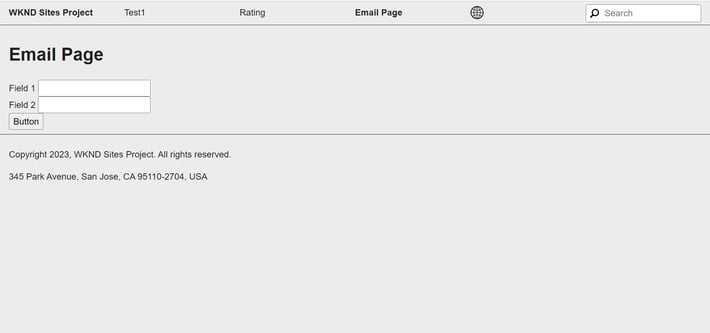
- Enter the values in the form and click on Button. You can see in the network tab, a request is triggered.
- On Click of Button, 2 actions will be performed.
- Email Triggered with PDF attachment.
- Storing same PDF in AEM DAM.
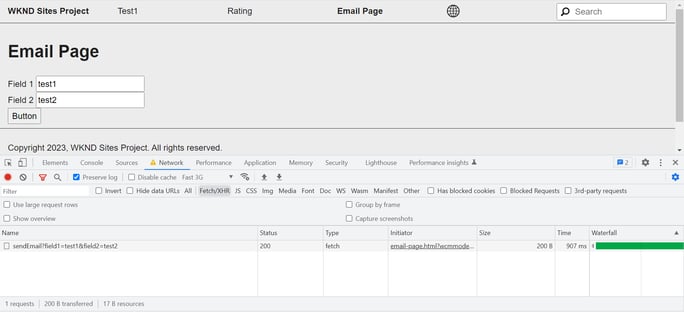
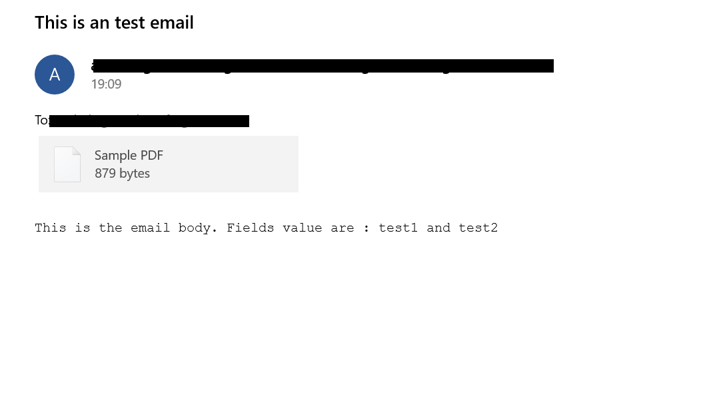
Once, you get the success response with the Http Status as 200 OK. Check your email, you must have received an email.
- You can find the pdf content as below. You can modify the pdf content through the code in which format user would like to display.
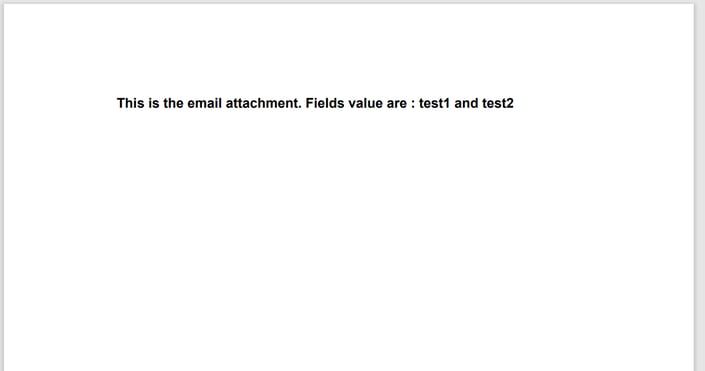
- Also, once you click on Button, the corresponding pdf is also stored in AEM DAM.
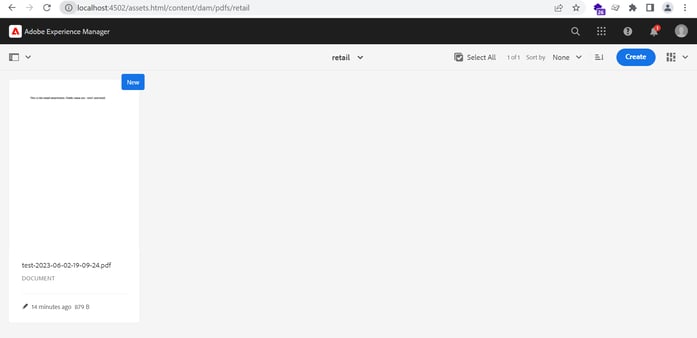
- User can store the PDF in any of the path under/content/dam
Hope you liked the article. Please reach out to digital group: digital.interactive@coforge.com for any query.